In today’s connected world, it’s increasingly common to have copy-and-paste arrows. The most obvious example is the arrow keys that appear on most laptop keyboards. These provide navigation around your current screen or document.
Beyond simple direction, these glyphs are also used to show flow — such as in a process flowchart — or for steps. Arrows can even be styled to add aesthetic value, especially when combined with text.
Of course, these Unicode characters can vary from one font to another, and some of them might not render properly on older platforms. Still, the basic directional set should work across all fonts and devices.
Arrow Symbol Guide
Here’s what you need to know about arrow copy and paste symbols and combinations
Left, right, up, and down arrows
First up is a group of basic arrows: left (←), up (↑), right (→), and down (↓). You’ll use these for navigating through a document, list of steps, bullets, links, profile lines, etc.
There’s also a pair of opposites: ↔ (back-and-forth) and ↕ (up-and-down), but those tend to overlap with other symbols. Otherwise, I’m including a couple more arrows: ↨ (an up-down arrow with a base) and ↩ (a hooked arrow often used for return or undo) and ➞ (a right arrow with an open head).
The heavy arrows (⇒; ⇨; ➜; ➤) and double arrows (⇤; ⇥; ⇦; ⇧; ⇪; ⇵; ⇶; ⇷; ⇸; ⇹; ⇺; ⇻; ⇼) can also be used for direction, but adding more visual weight helps emphasize where you’re going, if that makes sense. For example, using the arrowhead-heavy ⇒ or ➤ might help draw attention to the direction you want readers to follow.
More directional options
There’s also a collection of curved or rotating arrows (↺; ↺; ⭢; ⭣; ⭤; ⭥; ⭦; ⭧; ⭨; ⭩; ⭪; ⭫; ⭬; ⭭; ⭮; ⭯; ⭰; ⭱; ⭲; ⭳; ; ; ⭶; ⭷; ⭸; ⭹; ⭺; ⭻; ⭼; ⭽; ⭾; ⭿; ⮀; ⮁; ⮂; ⮃; ⮄; ⮅; ⮆; ⮇; ⮈; ⮉; ⮊; ⮋; ⮌; ⮍; ⮎; ⮏; ⮐; ⮑; ⮒; ⮓; ⮔; ⮕; ; ⮗; ⮘; ⮙; ⮚; ⮛; ⮜; ⮝; ⮞; ⮟; ⮠; ⮡; ⮢; ⮣; ⮤; ⮥; ⮦; ⮧; ⮨; ⮩; ⮪; ⮫; ⮬; ⮭; ⮮; ⮯; ⮰; ⮱; ⮲; ⮳; ⮴; ⮵; ⮶; ⮷; ⮸; ⮹; ⮺; ⮻; ⮼; ⮽; ⮾; ⮿; ⮿; ⮿) to denote rotation, return, refresh, loop, and undo. In this category, you’ll find a variety of arrows and marks, both basic and more stylized. I’ve grouped these together so you can move quickly among them.
Core named arrows and code points
You’ll also see references to arrows by name. Here’s the core named arrow set and their corresponding code points:
← U+2190 Leftwards Arrow
↑ U+2191 Upwards Arrow
→ U+2192 Rightwards Arrow
↓ U+2193 Downwards Arrow
↔ U+2194 Left Right Arrow
↩ U+21A9 Leftwards Arrow With Hook
↶ U+21B6 Anticlockwise Top Semicircle Arrow
↻ U+21BB Clockwise Open Circle Arrow
⇒ U+21D2 Rightwards Implication
➜ U+279C Heavy Rightwards Arrow
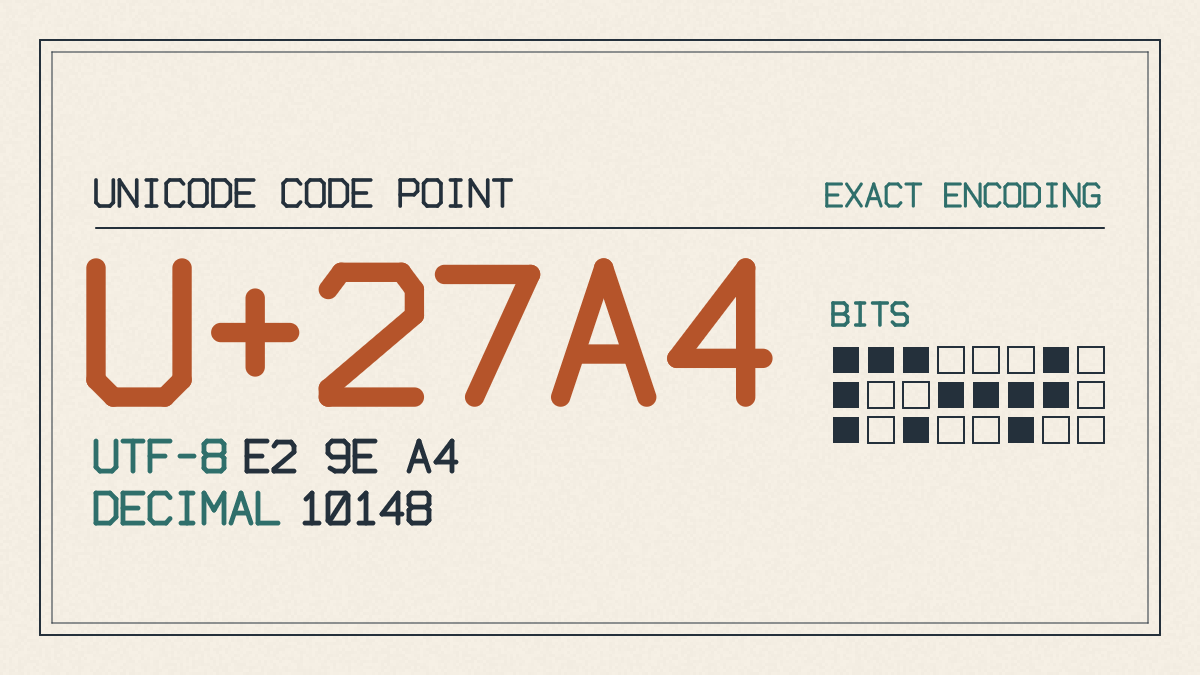
➤ U+27A4 Heavy Rightwards Arrowhead
U+2190–U+21FF: Arrows block
Text versus emoji
These arrows are part of the basic Unicode character set. However, there are emojis too. In addition to default text presentation, some arrows support emoji-capable versions, which means they’ll be rendered as color icons rather than standard glyph symbols.
The difference between text arrows and emoji arrows is subtle: text arrows will be presented as black text in white space, while emojis are colored icons. This means that any colorful media arrow symbol will look good inside an app that supports emoji, like Instagram Stories or Twitter Spaces. But it may not display correctly elsewhere.
However, emoji-capable arrows also have an issue: variation selectors that allow users to choose between emoji and text. So if you don’t see an emoji arrow displayed as intended, make sure that you’ve chosen the right arrow and selected the correct option (emoji) within the app itself.
For example, here are two variations of the same arrow, but one renders as text and the other as an emoji:
↔
↕
↖
↗
↘
↙
↩
↪
To enable the emoji version, use the base arrow followed by the emoji variation selector U+FE0F — for example, ↔️ rather than ↔. The app or platform still has to support that emoji presentation for it to appear in color.
Finally, there are the arrow pairs: ← and → are just the same arrow in opposite directions. Other arrows like ⇨ or ⇧ are different entirely. Some, like ⇩ and ⇦, seem to represent relationships between objects, like “between.”
Curved, return, and circular arrows
As mentioned above, the curved and circular arrows represent a separate style family for undo, return, refresh, loop, and rotation cues. Some of these arrows are also included in the emoji selection.
Bidirectional relationship arrows
Some of the arrows in this family represent relationships between objects, such as “between,” “in front of,” “behind,” “underneath,” “over,” “around,” “inside of,” and so on. In addition to a single-headed variant, there are two-headed variants that indicate a relationship in both directions.
Rotational arrows
There are several varieties of rotational arrows. Some point clockwise, while others go counterclockwise. Others show that something has rotated completely, or gone into a loop. These arrows are useful to convey motion or transformation.
Decorative arrows
There are many decorative arrows, including ones that mimic the design of an emoji, and arrows that include stars, hearts, sparkles, etc., either as decoration or to highlight key phrases. Many are just plain, however, and are used to form aesthetic strings, like a pointer intro, line divider, caption flourish, symmetrical mark, or even plain process strings.
A few examples:
• ˋ°•*⁀➷
• ╰┈➤ˎˊ˗
• ✧˚ ༘ ➳
• ➽──────────────❥
• ⋘ » ☆ « ⋙
• Research → Build → Share
Useful combinations
Using arrows
Arrows are commonly used to show movement, direction, or relationships in bios, captions, posts, chats, profile fields, instructions, and link cues. Just remember that not every platform supports all arrow symbols. If an arrow doesn’t show up, try a similar symbol instead.
To start using arrows, simply copy and paste the desired arrow into a message or post. Be careful of spacing — sometimes arrows don’t render well unless you put a little bit of extra space between them. Once you’ve pasted in the arrow, inspect how it appears before publishing it.
If the arrow looks missing, you’ll probably see boxes where the arrows should appear, or maybe question marks. Check whether the device or platform you’re using actually supports the arrow.
Finally, there’s a simple rule of thumb to keep in mind: Use basic arrows for reliability. Use heavier arrows if you think they’ll help clarify meaning. Only use decorative arrow combos once you’ve checked out how they’ll look on the platform or target device.
Arrow copy and paste symbols are useful for indicating flow and motion, especially in social settings. You can mix arrows with words or images, but don’t overdo it. There’s a fine line between making your point clear and overloading your audience with visual clutter.
For more ideas on how to use arrows and symbols in your writing, consider checking out the following resources:
Unicode.org
Unicode Emoji
Apple Emoji Quick Guide